Import & Export
Move an entire organization's configuration in and out of Expecto as a single JSON file. Use it to back up your setup, clone a configured org into a new environment (for example staging → production), or hand a ready-made configuration to another team.
What you need
The owner or admin role in the organization you are exporting from or importing into. Import and export operate on the organization you are currently acting in — confirm it in the account area first.
What's included
Export and import cover the whole configuration layer of an organization, not the delivered data of individual sessions:
- Entities — target schemas, their JSON Schema, and validation rules
- Projects — including attached entities, business rules, and output format
- Data Contracts and their Transformers
- Catalogs / dictionaries (reference value sets)
- Data Providers, their members, and project/contract access grants
Session files, parsed Parquet, and run history are not part of the package — import recreates the configuration, not past deliveries. Neither are integration connections, context sources, outbound bindings, or webhook endpoints: they carry secrets and are recreated by hand or through the API after an import.
Where to find it
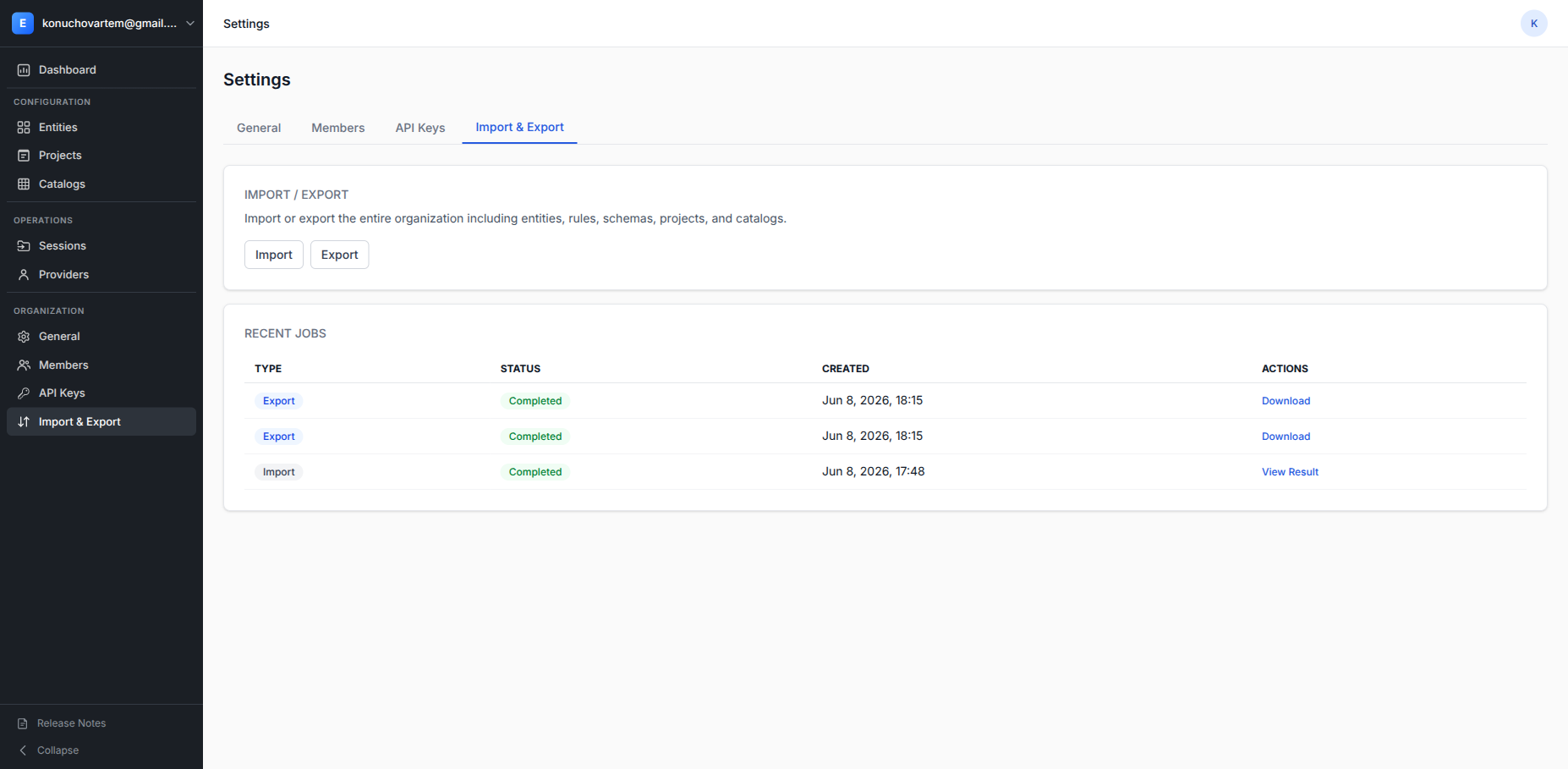
Open Settings → Import & Export. The card offers Import and Export buttons, and a Recent jobs list below tracks every import and export you start.
Export the organization
- Click Export.
- A background job starts and a toast confirms "Export started. Track progress below in Recent jobs."
- When the job reaches Completed in Recent jobs, click Download to save the JSON file. The download link is a temporary signed URL, so download it soon after the job finishes.
The export is a point-in-time snapshot — re-export whenever the configuration changes.
Import a configuration
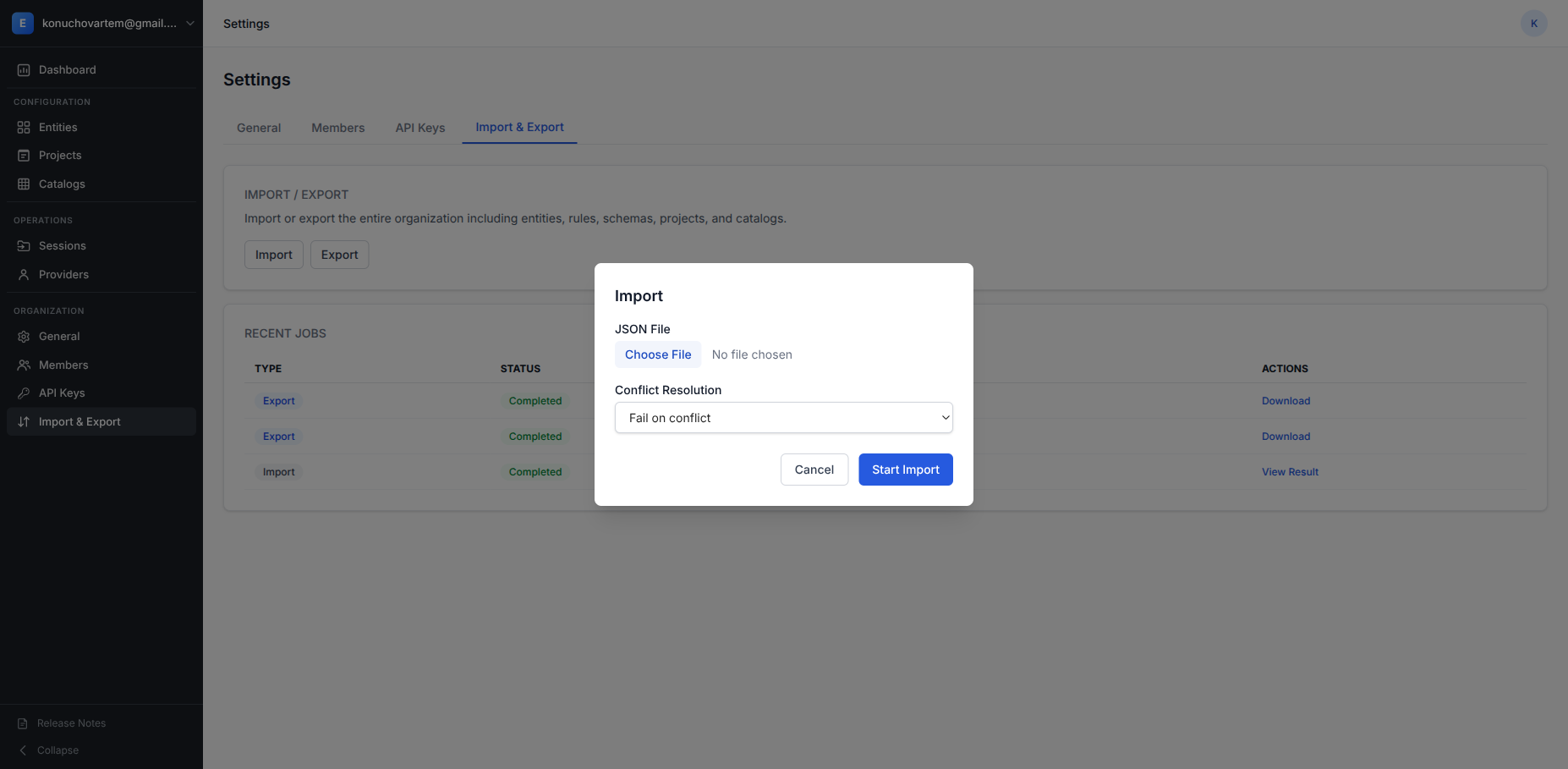
- Click Import to open the import dialog.
- Choose the JSON file produced by an earlier export.
- Pick a Conflict Resolution strategy (see below).
- Click Start Import.
Conflict resolution
When an incoming object has the same name as one that already exists in the target organization, the strategy decides what happens:
| Strategy | Behaviour |
|---|---|
| Fail on conflict | Stop the import on the first existing object. Safest for importing into a fresh, empty org — nothing is changed if anything collides. |
| Skip existing | Keep the existing object untouched and import only the new ones. Use this to top up an org with additions. |
| Overwrite existing | Replace the existing object with the imported one. Use this to push an updated configuration over an older copy. |
Overwrite replaces configuration
Overwrite existing changes objects already in the organization. Export the target org first if you want a restore point.
Track progress and read the result
Every import and export appears in Recent jobs with a status that refreshes on its own — Running while it executes, then Completed or Failed — so you do not need to reload the page. A failed row shows the full error inline.
For an import, click View Result to open the job detail page. Five tiles summarise the outcome — Total, Created, Overwritten, Skipped, and Failed — and the Items table lists every object with its per-item status. Click a tile to filter the table (for example Failed to see only the items that did not import); a tile with a count of zero is disabled.
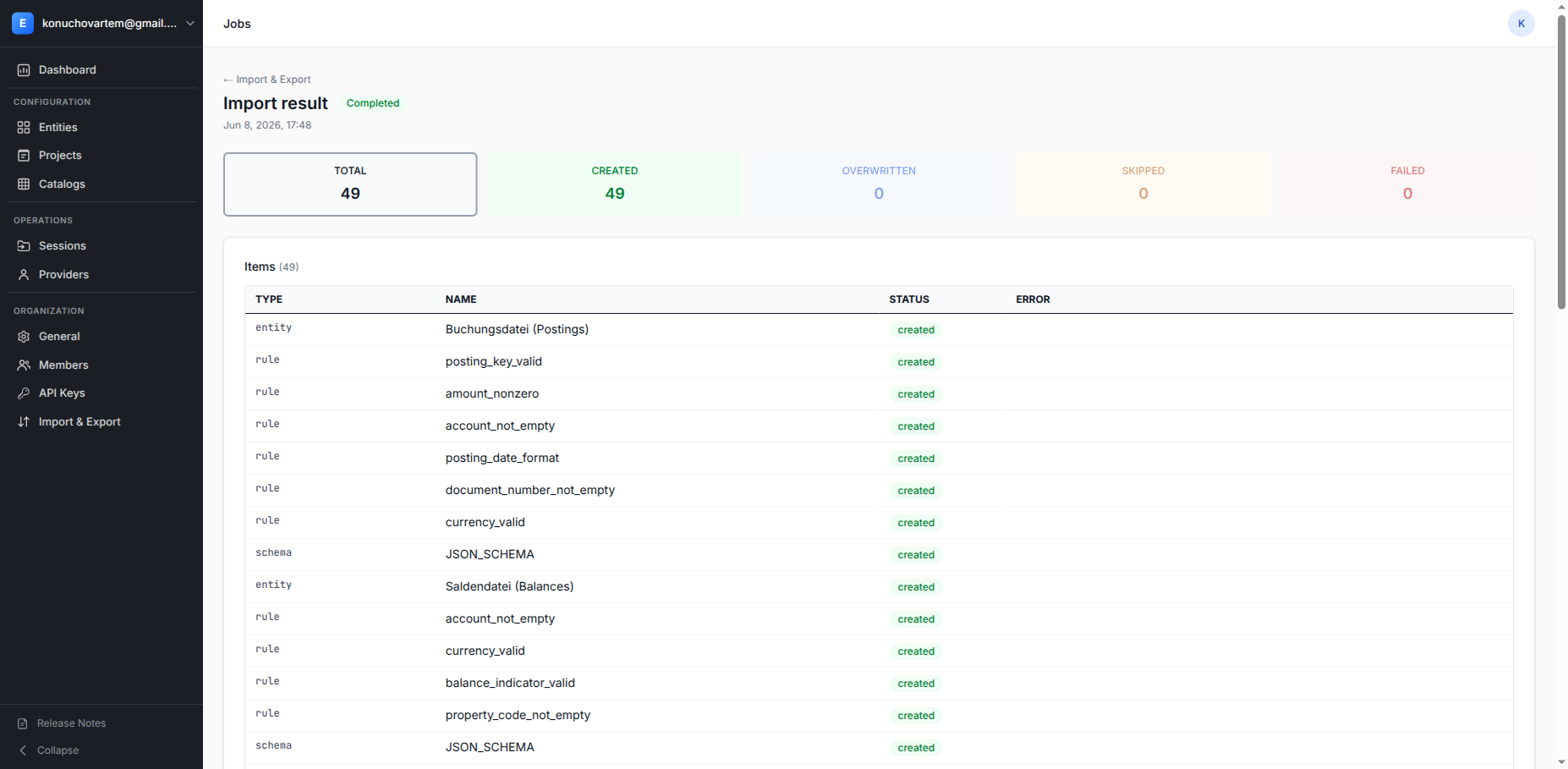
Use the ← Import & Export link to return to the Settings tab.
Doing it programmatically
The same import and export are available over the REST API and MCP, so you can
script backups or environment promotion. See the
Developer Quickstart for authentication with the
X-API-Key header.
Where to go next
| If you want to… | Go to |
|---|---|
| Understand what an organization contains | Organizations & multi-tenancy |
| Configure the intake that gets exported | Project Owner Quickstart |
| Automate import/export | Developer Quickstart |