Project Owner Quickstart
Goal: set up end-to-end intake from one supplier in about thirty minutes, and accept the first valid delivery. The example below uses the FIBU import case (German property management accounting). The same shape applies to any domain.
This page is intentionally high-level — each step links to the detailed how-to. If you want vocabulary first, read Concepts.
Prerequisites
- An Org Admin has invited you to your organization with at least the Project Owner role.
- You know what shape of data you want to end up with — i.e. what columns the downstream system expects.
- One sample file from at least one supplier, so you can verify end-to-end on real input.
The console references below assume you are logged in to your Expecto
instance. The API references assume $EXPECTO_BASE_URL and
$EXPECTO_API_KEY are set as in the Developer Quickstart.
Step 1 — Create your Project
A Project groups everything for one receiving use case: entities, contracts, transformers, business rules, exports, providers.
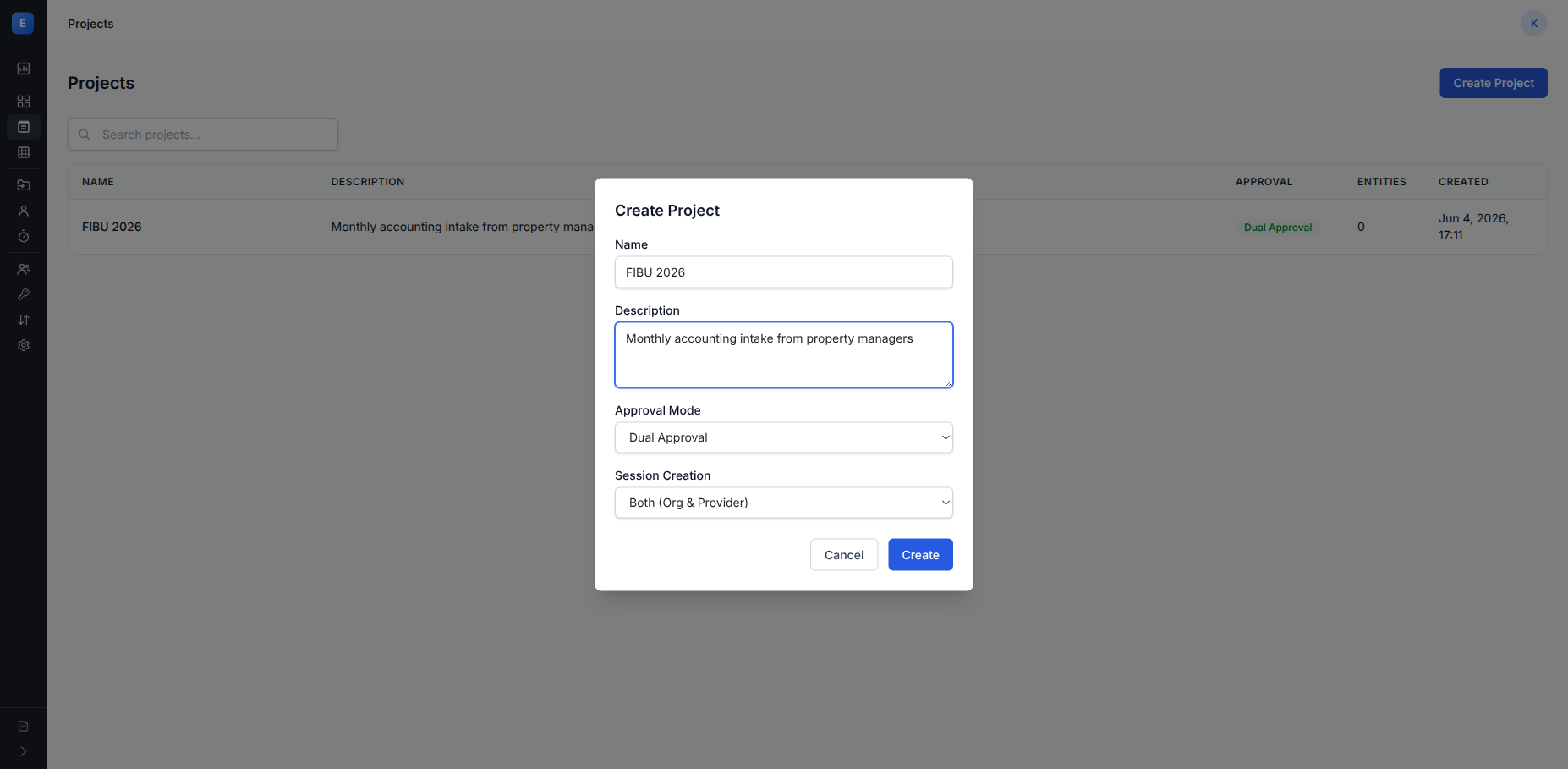
In the console: Projects → Create Project. Give it a name like
FIBU 2026 and a one-line description. Leave the defaults for
Approval Mode (Dual Approval) and Session Creation
(Both) unless you know you want otherwise.
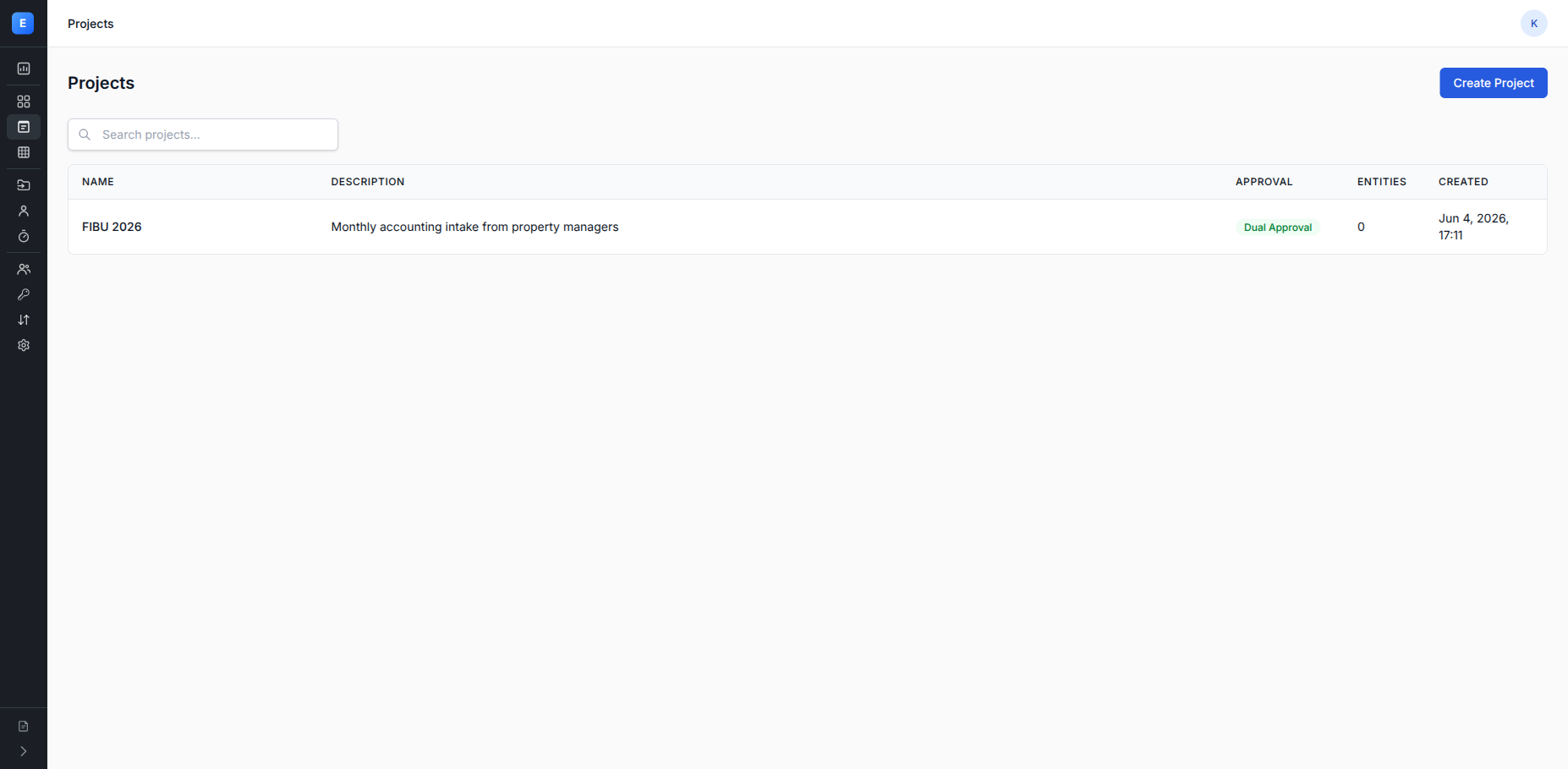
The new project appears in the list straight away:
Or via API:
curl -sS -X POST \
  -H "X-API-Key: $EXPECTO_API_KEY" \
  -H "Content-Type: application/json" \
  -d '{"name": "FIBU 2026", "description": "Monthly accounting intake"}' \
  "$EXPECTO_BASE_URL/api/projects" | jq .
Store the returned id as PROJECT_ID.
Step 2 — Define your target Entity
An Entity is the schema your data lands in once normalized — a target table with column types and per-row validation rules.
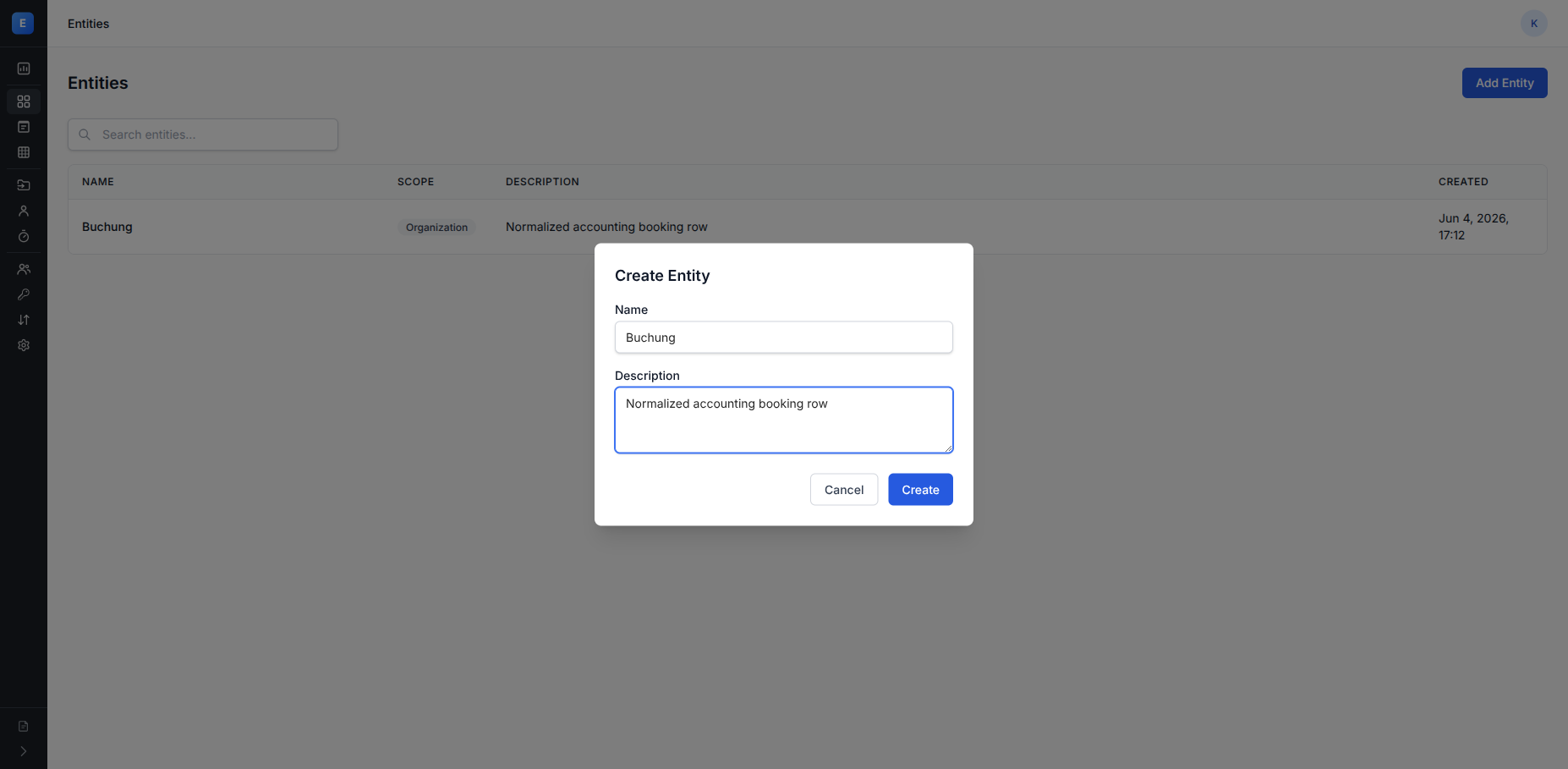
In the console: open Entities → Add Entity. Name it Buchung and
give it a short description.
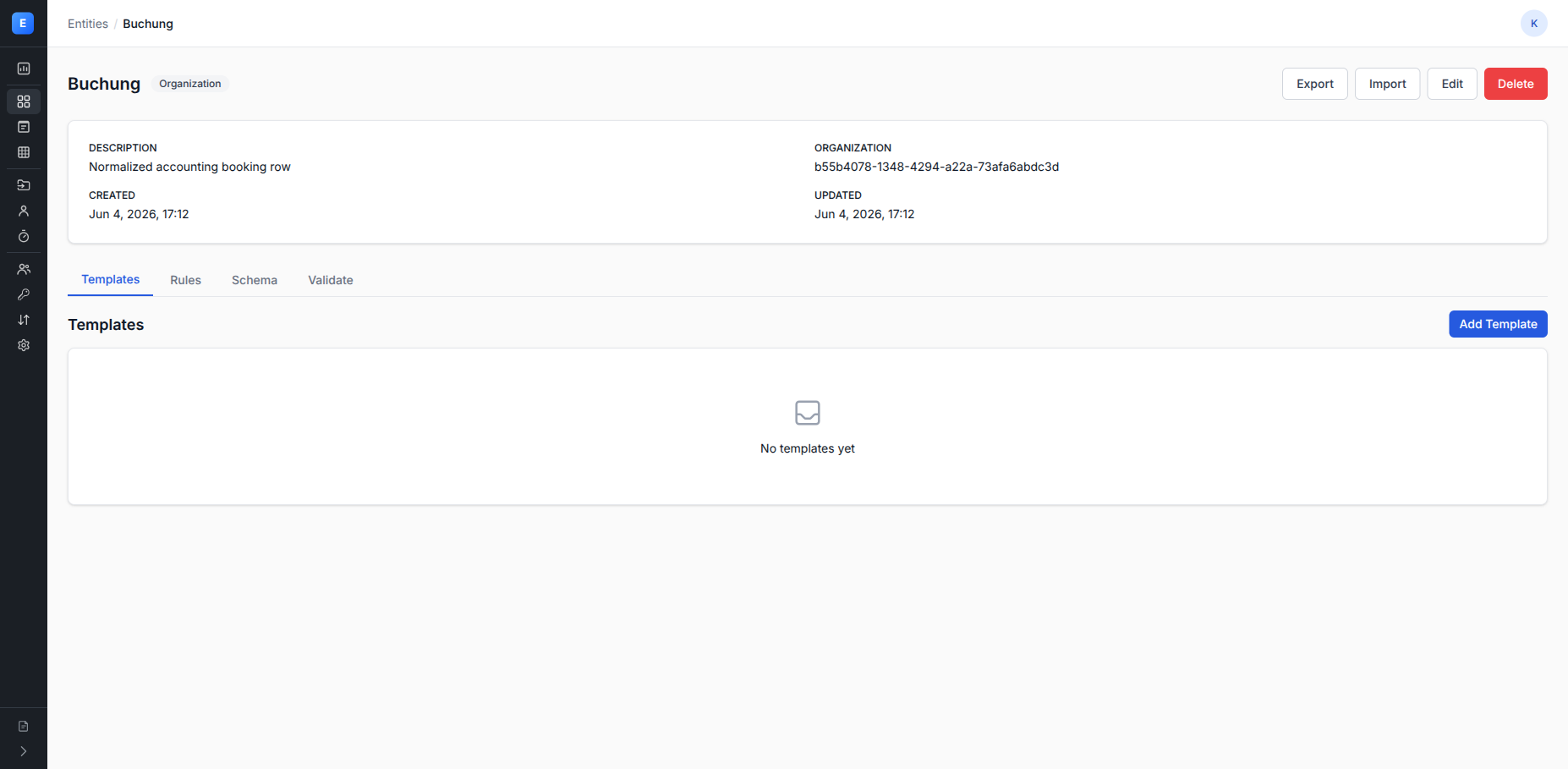
Open the entity and define its columns (e.g. konto text, betrag
decimal, buchungstext text, belegdatum date). Then add at least one
validation rule so the pipeline can reject obviously broken rows.
Example rule, expression-language form (what you type into the rule editor):
len(konto) == 6 and matches(konto, '^[0-9]+$')
Message:
{"en": "Konto must be 6 digits", "de": "Konto muss 6 Ziffern sein"}
The platform compiles that to a DuckDB violation query under the hood; see Expression language (Coming soon.) for the full operator list and built-in functions.
Equivalent via API. Rules are nested under their entity, so the entity id
goes in the path (export it as ENTITY_ID from the entity you created).
The expression is a precompiled DuckDB SELECT that returns the violating
rows:
curl -sS -X POST \
  -H "X-API-Key: $EXPECTO_API_KEY" \
  -H "Content-Type: application/json" \
  -d '{
    "name": "konto_6_digits",
    "level": "error",
    "expression": "SELECT * FROM data WHERE LENGTH(TRIM(konto)) != 6 OR konto !~ '\''^[0-9]+$'\''",
    "message": {"en": "Konto must be 6 digits"}
  }' \
  "$EXPECTO_BASE_URL/api/entities/$ENTITY_ID/rules" | jq .
Step 3 — Author a DataContract
A DataContract describes what a particular supplier promises to deliver — file types, expected columns, role of each file. It is the supplier-facing agreement, independent of how you transform it.
In the console: open the project's Data Contracts tab and choose
New Data Contract. Give it a name like Hausverwaltung X — FIBU v1
and set the supplier id.
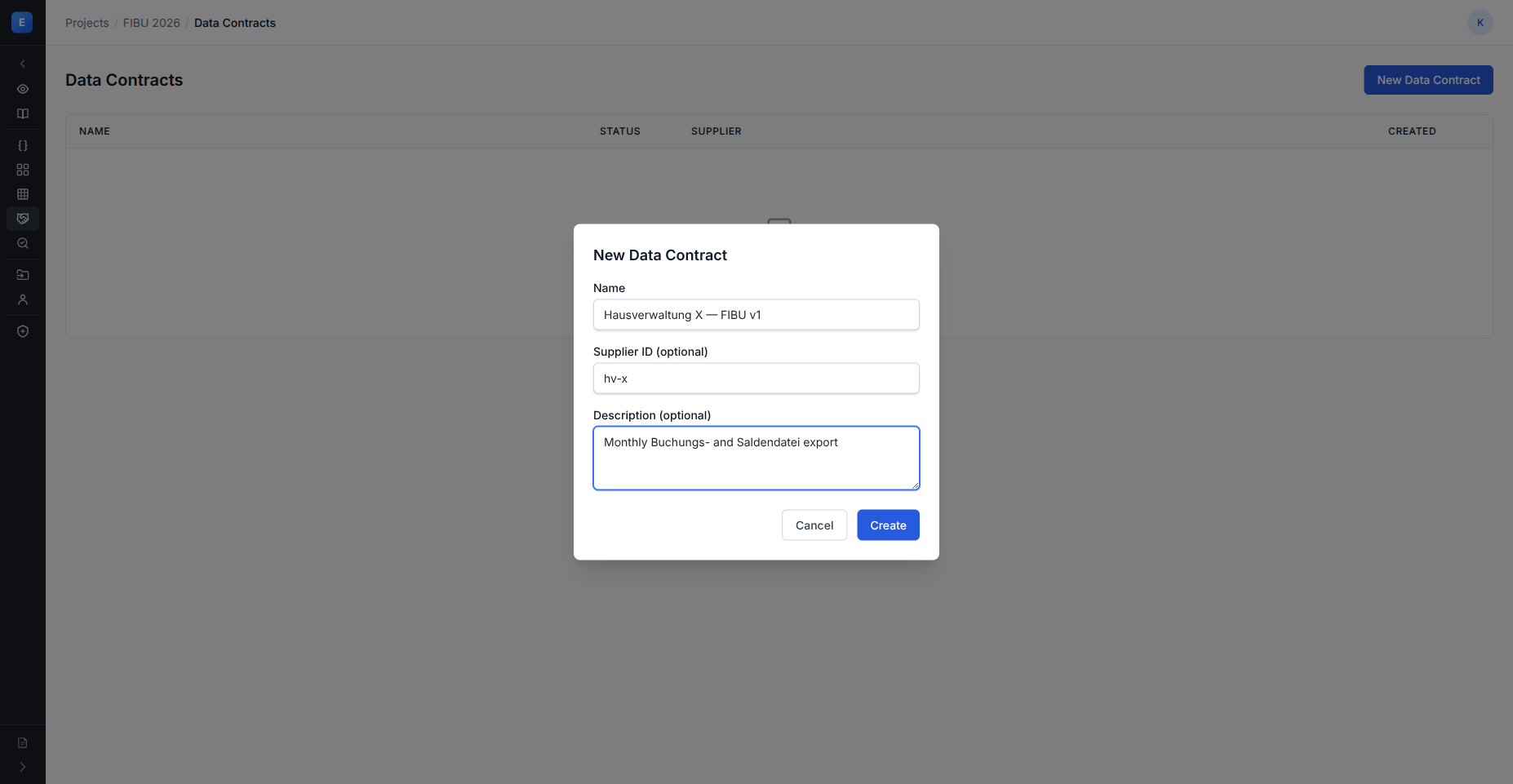
Open the contract and add Sources — one per file role. For FIBU you typically have two:
buchungsdatei(CSV, semicolon-delimited, German encoding) with columns likeKonto,Betrag,Buchungstext,Belegdatum.saldendatei(CSV) withKonto,Saldo.
The contract detail page has Sources, Revisions, and Transformers tabs; the current revision starts as a draft until you activate it.
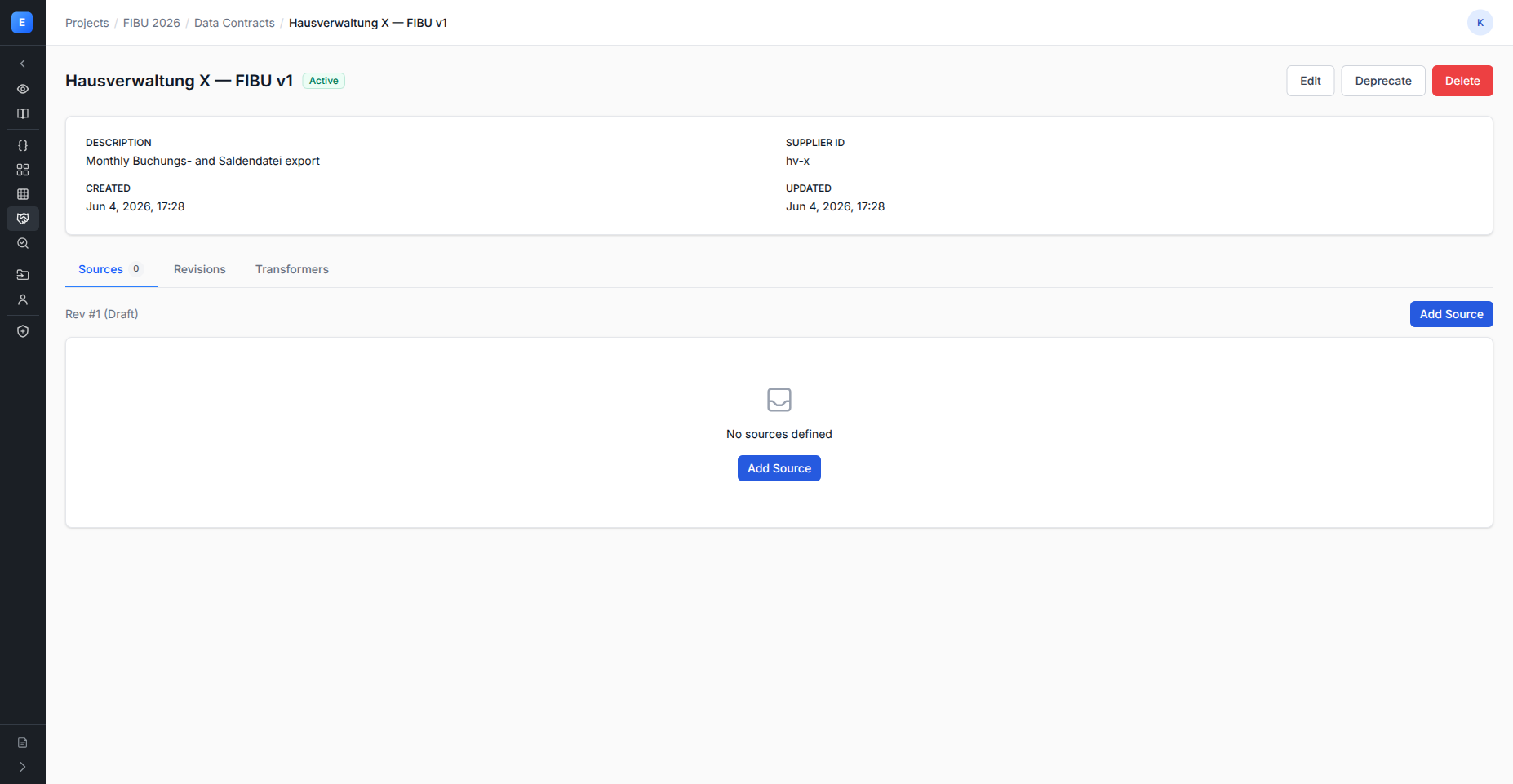
For each source, attach a Frictionless Table Schema describing column names and types so structural mistakes are caught before transformation.
Or via API:
curl -sS -X POST \
  -H "X-API-Key: $EXPECTO_API_KEY" \
  -H "Content-Type: application/json" \
  -d '{
    "name": "Hausverwaltung X — FIBU v1",
    "supplier_id": "hv-x",
    "project_id": "'"$PROJECT_ID"'"
  }' \
  "$EXPECTO_BASE_URL/api/data-contracts" | jq .
Store the id as CONTRACT_ID. Source endpoints under the contract
(/api/data-contracts/{id}/sources) let you add each file role.
Until you activate it, the contract is in draft. Activation locks it
as Revision 1 and runs a compatibility check against any transformers
you point at it.
Step 4 — Build a Transformer
A Transformer maps a contract's sources onto an entity. Every column
of the entity gets one mapping expression — a DuckDB expression
referencing a source field, with the option to clean it up
(TRIM, LPAD, type casts, dictionary lookups).
In the console: from the Project, Transformers → New transformer.
Pick the Entity (Buchung) and the DataContract revision. Then per
source role, enter mappings for each target column:
| Target column (Entity) | Mapping (DuckDB expression on the source) |
|---|---|
konto |
LPAD(TRIM("Konto"), 6, '0') |
betrag |
CAST(REPLACE("Betrag", ',', '.') AS DECIMAL(18,4)) |
buchungstext |
TRIM("Buchungstext") |
belegdatum |
STRPTIME("Belegdatum", '%d.%m.%Y') |
Activate the transformer when its mappings cover every required entity column.
Via API, transformers are nested under their data contract. The mappings
go in mappings_per_role, keyed by source role:
curl -sS -X POST \
  -H "X-API-Key: $EXPECTO_API_KEY" \
  -H "Content-Type: application/json" \
  -d '{
    "name": "Buchung from Hausverwaltung X v1",
    "data_contract_id": "'"$CONTRACT_ID"'",
    "data_contract_revision": 1,
    "entity_id": "'"$ENTITY_ID"'",
    "mappings_per_role": {
      "buchungsdatei": { "...": "RoleMapping object" }
    }
  }' \
  "$EXPECTO_BASE_URL/api/data-contracts/$CONTRACT_ID/transformers"
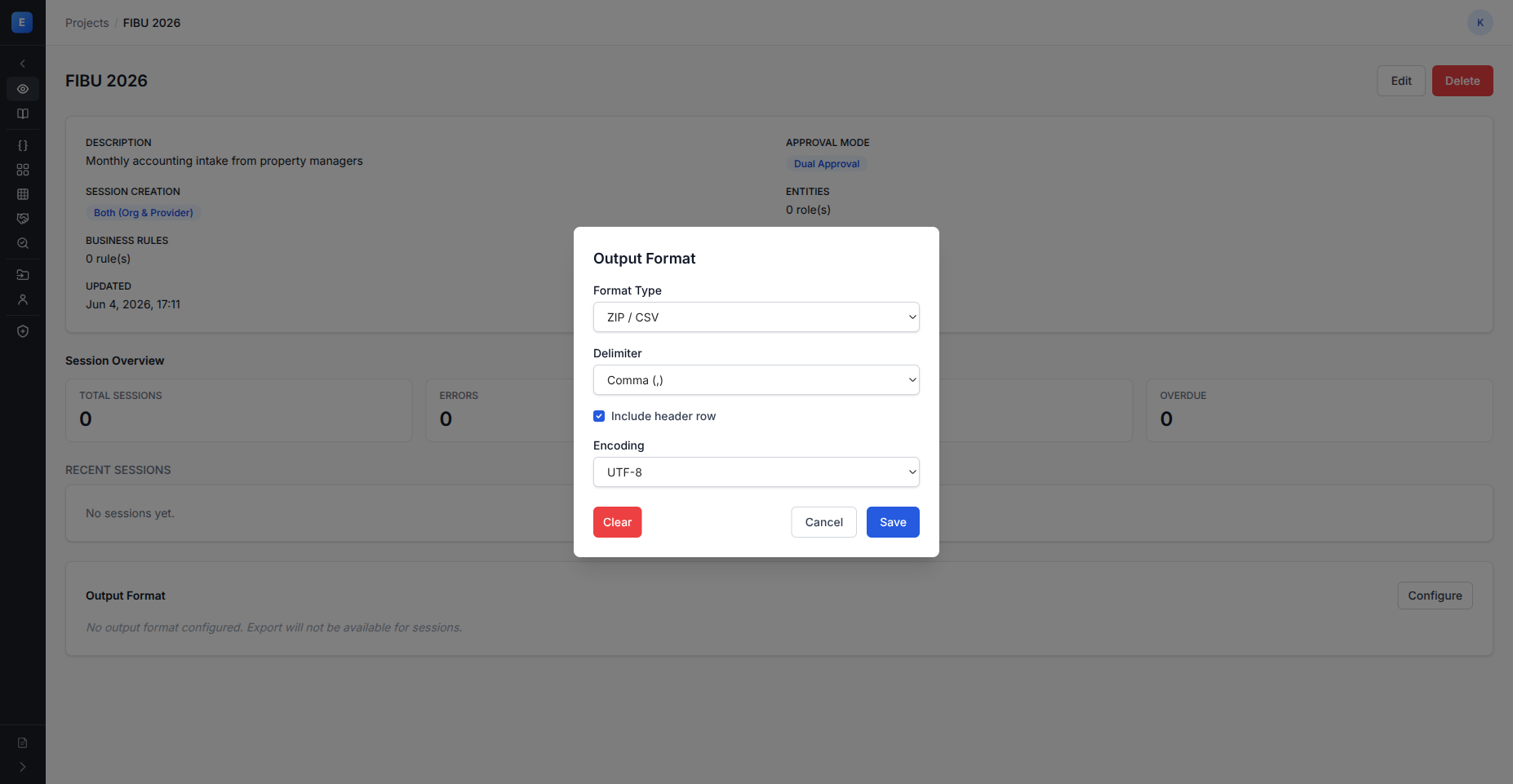
Step 5 — Configure the export format
On the Project, set output_format to whatever your downstream
system expects. Built-ins: sap_v46 (SAP Interface V4.6), zip_csv
(per-entity CSV in a zip), excel_workbook. This is what gets
produced when a session is finally approved.
In the console: on the project Overview, find Output Format and choose Configure. Pick the format type and its options (delimiter, encoding, header row for CSV-based formats).
Step 6 — Invite a Data Provider
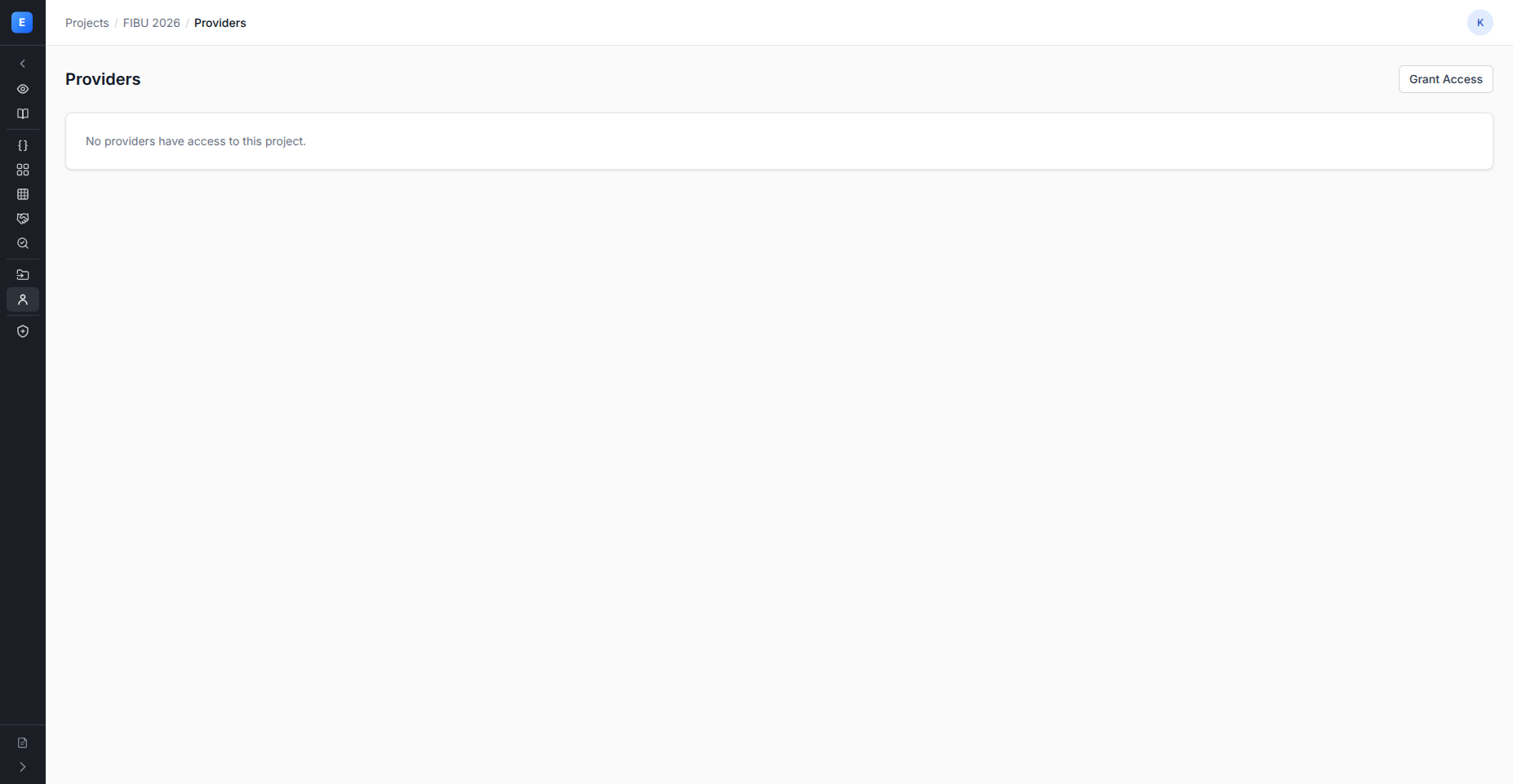
Until you grant a supplier access, no one can submit data.
In the console: open the project's Providers tab and invite a provider. Pick (or create) the provider organization, then grant access to this project and this specific contract. They get an invite email and will see a single-purpose submission view when they log in.
Step 7 — Review the first session
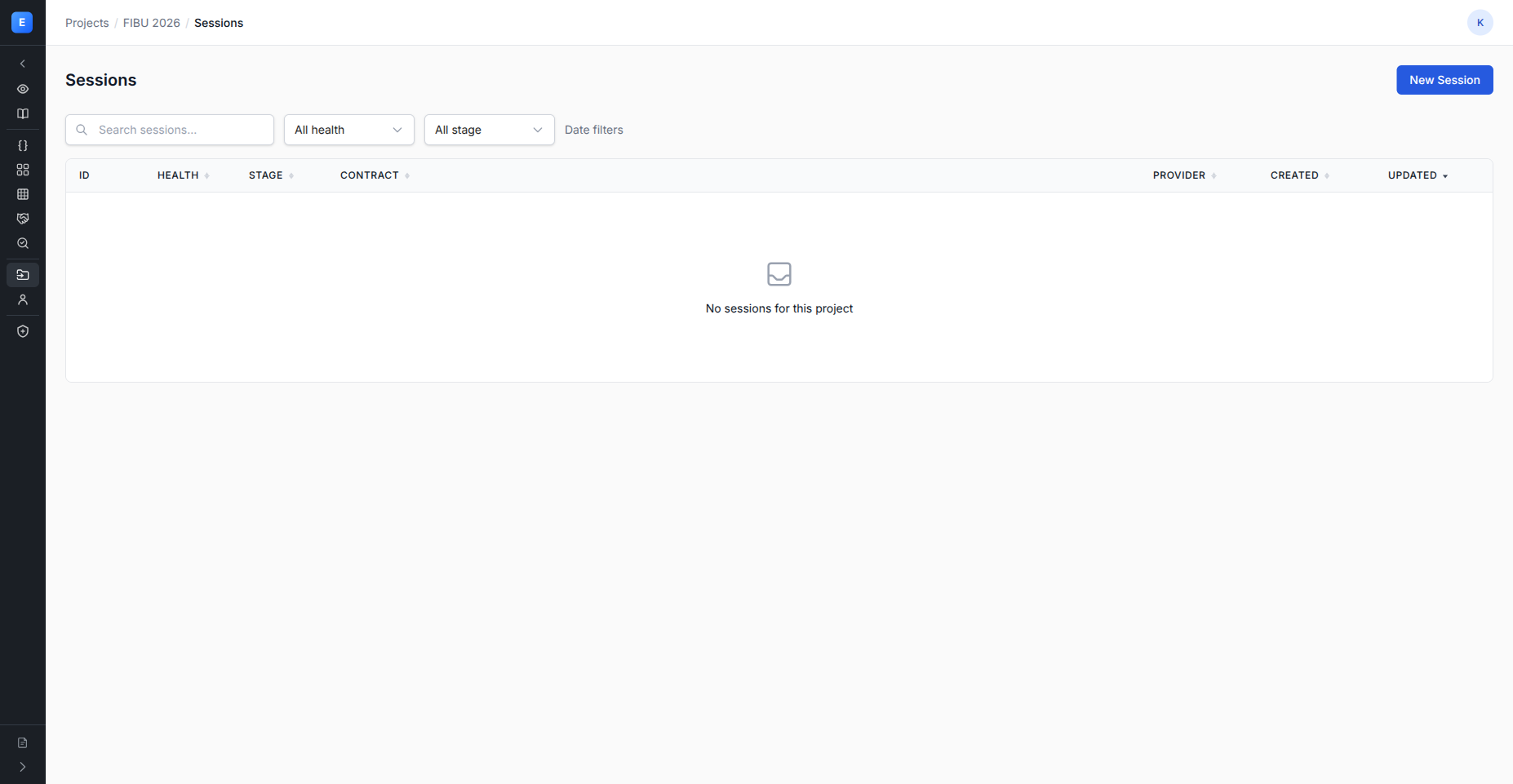
When the provider uploads, a Session appears under the project's
Sessions tab, tracked by health and pipeline stage. The pipeline
runs parse → transform → check automatically (or by trigger,
depending on project config).
Open a session and look at:
statusandhealth— what stage are we at and is anything blocked?- Violations tab — rule-by-rule list of rejected rows.
- Preview — the transformed entity rows as they would land downstream.
If everything looks good, Confirm the session, then Approve it. Approval produces the export package in the configured format.
If something looks wrong, you can:
- Comment on the session for the provider to see.
- Reject it and ask for a resubmission.
- Fix a mapping in the Transformer (creates a new revision) and re-run the pipeline against the same files.
Where to go next
| If you want to… | Go to |
|---|---|
| Author more validation rules safely | Use golden sessions for safe rule changes — Coming soon. |
| Add reconciliation across files | Set up reconciliation — Coming soon. |
| Build a richer transformer with dictionary lookups | Build a Transformer — Coming soon. |
| Manage multiple contract revisions | Activate a contract revision — Coming soon. |
| Understand the domain model end-to-end | Concepts |