Developer Quickstart
Goal: in under ten minutes, make your first authenticated API call against Expecto, create a session, and run the same flow through the MCP surface. You will not configure projects or entities here — that is the Project Owner path. Here we assume someone has already set those up and you have an API key.
Prerequisites
- An API key — issued by an Org Admin via Org Settings → API keys. Treat it like a password; it grants access to everything your organization can see. If you do not have one, ask whoever onboarded your organization. The Org Admins' API keys how-to covers issuance.
- Your Expecto base URL. For the hosted instance this is
https://expecto-app.onrender.com. ReplaceEXPECTO_BASE_URLbelow with whatever instance you were given. - A terminal with
curl, and optionally Python ≥ 3.10 for the MCP step. Any MCP-compatible client (Claude Desktop, Claude Code, Cursor, an in-house client) works for the MCP step too.
export EXPECTO_BASE_URL="https://expecto-app.onrender.com"
export EXPECTO_API_KEY="paste-your-key-here"
All examples below assume those two variables are set.
Step 1 — Verify connectivity
Hit the /api/me endpoint. It echoes back the org and membership behind
your API key. If it works, your key is valid and your network reaches
the API.
curl -sS \
  -H "X-API-Key: $EXPECTO_API_KEY" \
  "$EXPECTO_BASE_URL/api/me" | jq .
You should see a JSON object describing your user, organization, and
role. A 401 means the key is wrong or revoked; a 403 usually means
the key belongs to a different organization than the resource you are
hitting.
Browse the API interactively
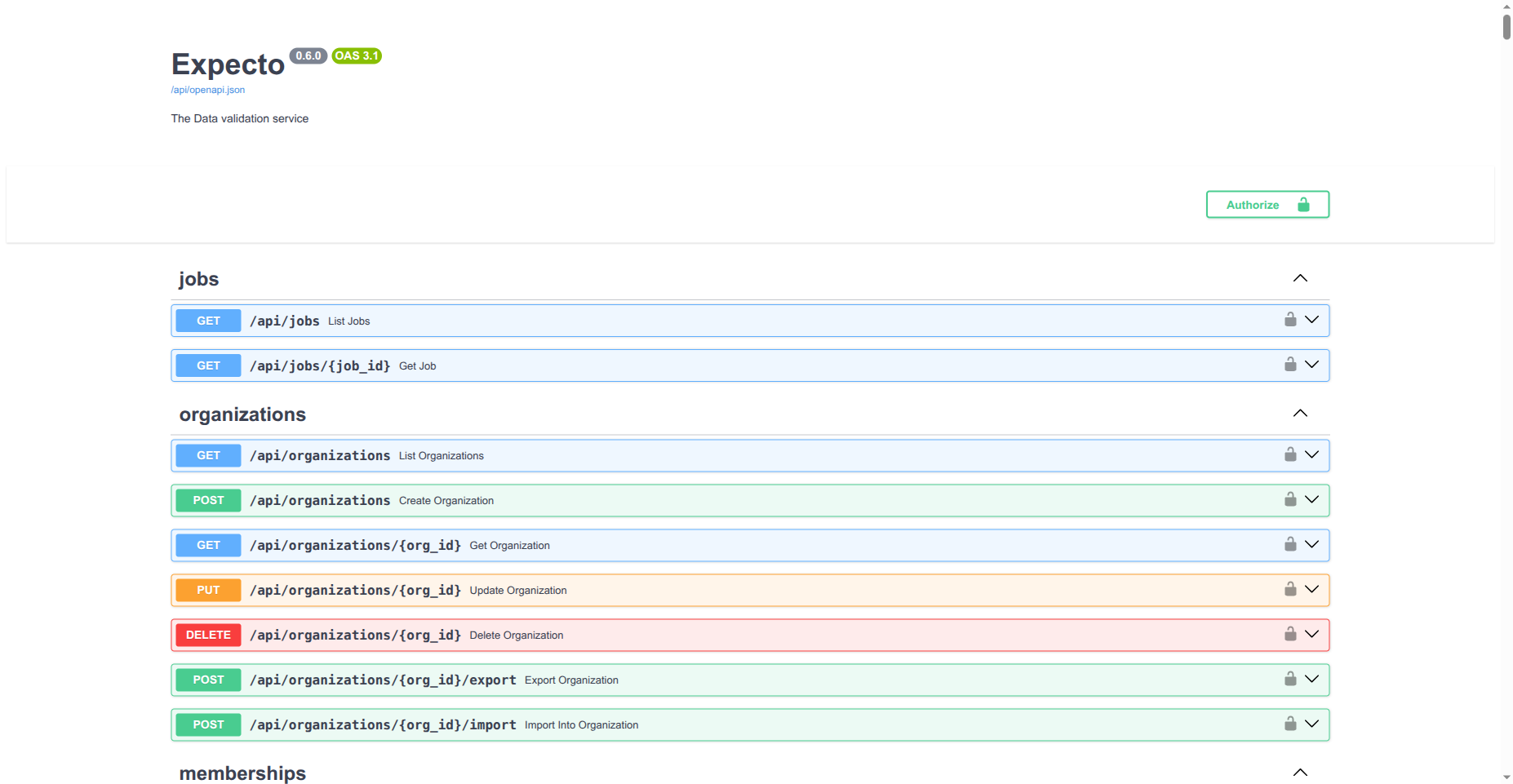
Every endpoint used below is documented in the interactive Swagger UI
at <EXPECTO_BASE_URL>/api/docs (ReDoc at /api/redoc). Click
Authorize, paste your API key, and you can try calls from the
browser.
Step 2 — List your projects
Every receiving use case lives inside a Project. List the ones your key can see:
curl -sS \
  -H "X-API-Key: $EXPECTO_API_KEY" \
  "$EXPECTO_BASE_URL/api/projects" | jq '.items[] | {id, name}'
Pick one and store its ID — most subsequent calls take a project context, directly or via a Session:
export PROJECT_ID="..."
Step 3 — Create a session and upload a file
A Session is one delivery act: a supplier + a period + a set of files running through the pipeline. To submit data via the API, you create a session, attach files to it, and trigger the pipeline.
Create:
curl -sS -X POST \
  -H "X-API-Key: $EXPECTO_API_KEY" \
  -H "Content-Type: application/json" \
  -d '{
    "project_id": "'"$PROJECT_ID"'",
    "data_contract_id": "PUT_CONTRACT_ID_HERE",
    "period_label": "2026-06"
  }' \
  "$EXPECTO_BASE_URL/api/sessions" | jq .
Store the returned id as SESSION_ID. Then upload a file against
the source role defined by the contract:
curl -sS -X POST \
  -H "X-API-Key: $EXPECTO_API_KEY" \
  -F "source_role=buchungsdatei" \
  -F "file=@/path/to/your/file.csv" \
  "$EXPECTO_BASE_URL/api/sessions/$SESSION_ID/files" | jq .
Run the full pipeline (async):
curl -sS -X POST \
  -H "X-API-Key: $EXPECTO_API_KEY" \
  "$EXPECTO_BASE_URL/api/sessions/$SESSION_ID/run"
This returns 202 Accepted and a job_id. Poll the session for
state — parse → transform → check:
curl -sS \
  -H "X-API-Key: $EXPECTO_API_KEY" \
  "$EXPECTO_BASE_URL/api/sessions/$SESSION_ID" | jq '{status, health, stages}'
When health is ready, the data passed validation and the session
can be confirmed then approved to produce the export package.
Step 4 — Do the same thing through MCP
Expecto exposes an MCP server at <EXPECTO_BASE_URL>/mcp/. Authentication
is the same X-API-Key header.
Add it to your MCP client. For Claude Desktop, edit
claude_desktop_config.json:
{
  "mcpServers": {
    "expecto": {
      "url": "https://expecto-app.onrender.com/mcp/",
      "transport": "http",
      "headers": {
        "X-API-Key": "your-api-key-here"
      }
    }
  }
}
Once connected, you have access to tools like list_projects,
get_project, create_session, upload_session_file,
run_session_pipeline, list_sessions, get_session,
get_session_violations. The same step 3 flow becomes:
list_projects → pick one
create_session(project_id, data_contract_id, period="2026-06")
upload_session_file(session_id, source_role="buchungsdatei", file=...)
run_session_pipeline(session_id)
get_session(session_id)
Most AI assistants chain these calls themselves once the goal is stated ("submit June data for IntReal to project X"), which is the main reason to use MCP over REST for human-driven submissions.
Where to go next
| If you want to… | Go to |
|---|---|
| Look up every REST endpoint | REST API reference — Coming soon. Interactive spec at /api/docs on your instance |
| Browse every MCP tool | MCP tools catalogue |
| Understand the underlying domain model | Concepts |
| Get a richer "submit data" flow from CI | Set up CI and automation — Coming soon. |
| Push results into BuiltAPI downstream | Integrate with BuiltAPI downstream — Coming soon. |