Webhooks
Push session lifecycle events from Expecto to a URL of your choosing the moment they happen. Use webhooks to drive downstream BI pipelines, trigger Slack or Teams alerts on a failed session, or hand off the exported package to your own systems without polling.
What you need
The owner or admin role in the organization. Each endpoint is scoped to one organization and, optionally, to one project inside it.
What gets delivered
For every session in the organization Expecto emits a webhook at each stage transition of its lifecycle:
| Event | When it fires |
|---|---|
session.created |
A new session is created |
session.uploaded |
A file is uploaded for the session |
session.parsed |
Parsing finished without errors |
session.transformed |
Transformation finished without errors |
session.checked |
Business rule checks finished without errors |
session.confirmed |
Submitter confirmed the data |
session.approved |
Final approval given (in dual mode only — single mode skips this step) |
session.exported |
Export package generated and uploaded |
session.failed |
A pipeline stage failed (parse, transform, or check). The payload includes stage and reason. |
webhook.ping |
Synthetic test event sent on demand |
The payload does not include a download URL for the exported package —
consumers fetch it through the authenticated API with their own API key.
The export event carries the package name and an artifact list with
sha256, row_count, and size_bytes for each file.
Where to find it
Open Settings → Webhooks. The tab lists every endpoint visible to you and offers a Create Webhook button.

Create an endpoint
Click Create Webhook. The dialog has three fields:
- Name — a human label so you can tell endpoints apart in the list and in delivery logs.
- URL — where Expecto will POST events. Must be
https://. Private, loopback, link-local, and cloud metadata IP ranges are rejected at creation time as an SSRF safeguard. The dev override (webhook_allow_http) is only available to operators of the Expecto instance, not in the UI. - Event types — pick at least one. Events are grouped by namespace
(e.g.
session.*) in a tree: tick individual events, toggle a whole group with its checkbox, or use Select all / Clear. You can change the selection later via Edit.
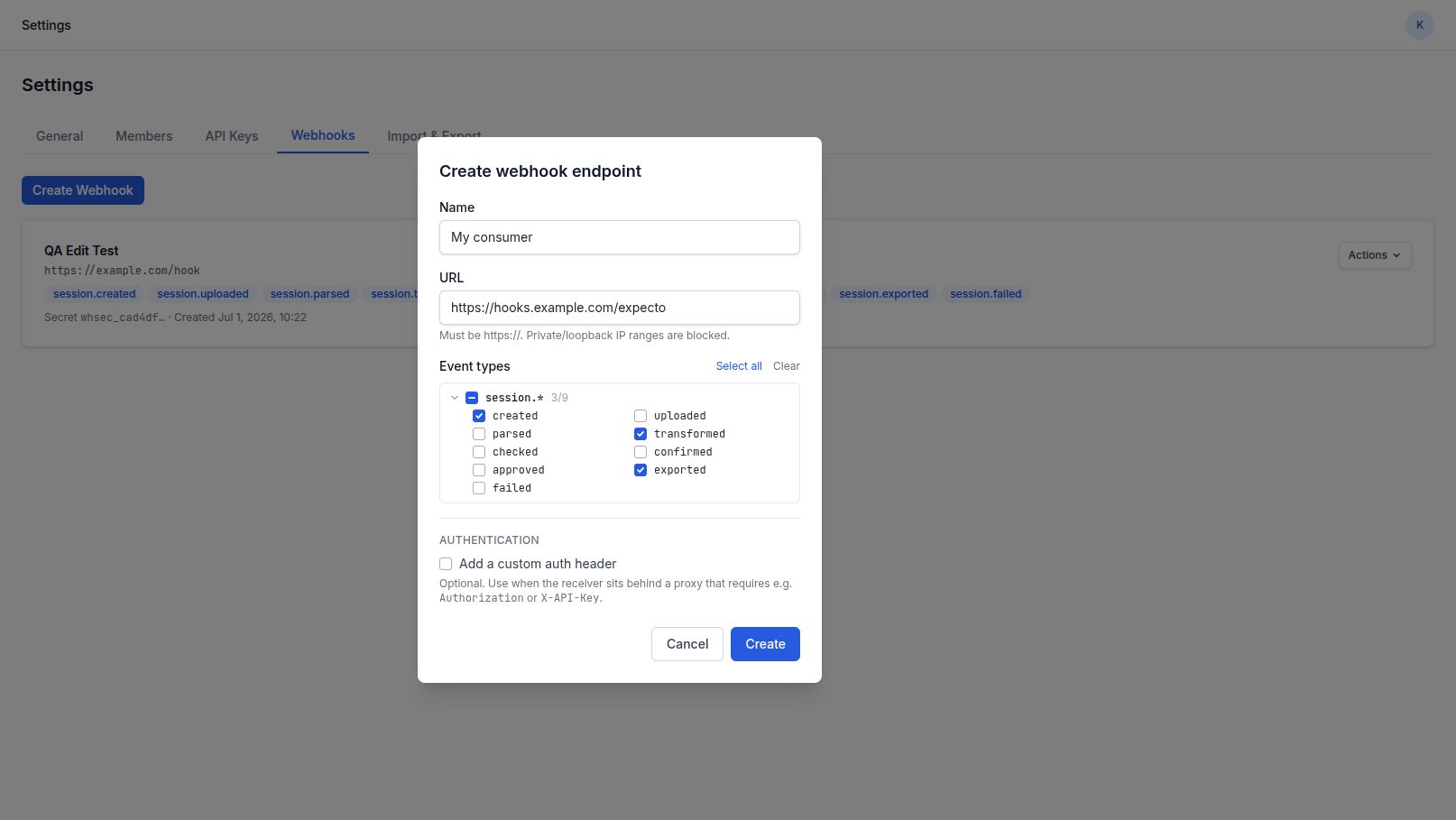
After clicking Create Expecto shows the signing secret exactly once
in a modal. Copy it now — it is the only time the plaintext is shown.
Expecto stores an encrypted form and only ever displays the whsec_… prefix
again. If you lose it, rotate the secret and update your consumer.
The endpoint list
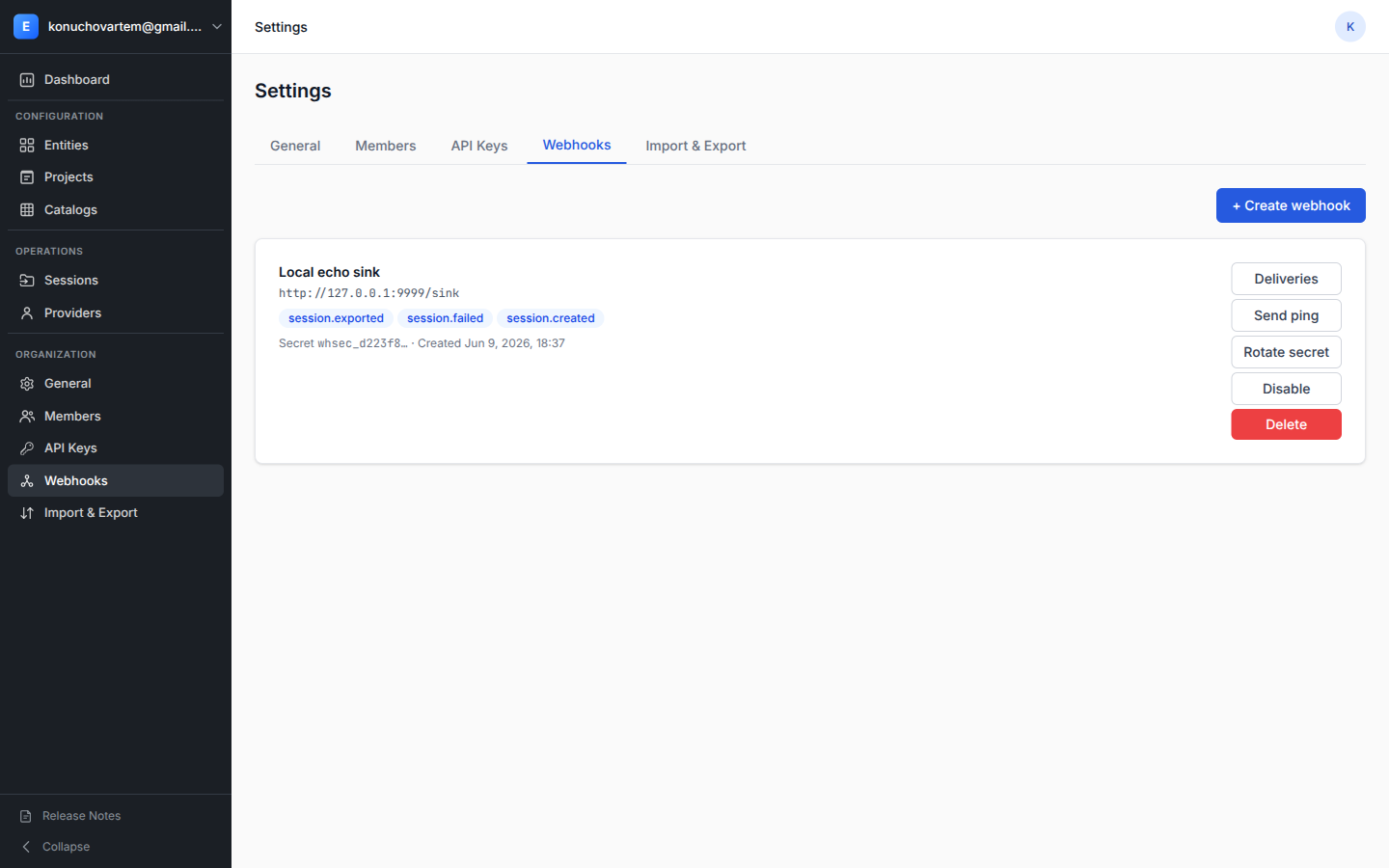
Each row shows the URL, the events the endpoint subscribes to, the secret prefix, and the badges that summarise its state:
- Disabled — the endpoint is paused; new events are not delivered.
- Auto-disabled — Expecto disabled the endpoint after 10 consecutive dead-letter deliveries (see Failure handling).
Outbound bindings in the same list
Besides webhook endpoints, the list shows the organization's outbound
bindings — project-level rules that write session events straight into an
external platform through an integration connection (Salesforce today).
A binding card carries an Outbound binding badge plus the adapter type,
shows connection → target (the Salesforce object) instead of a URL, the
subscribed events, the owning project, and one of the state badges:
- Active — events are delivered.
- Inactive — the binding is paused.
- Auto-disabled — Expecto paused the binding after consecutive dead-letter deliveries; the count is shown next to the badge.
Bindings are edited in the project, not here: open Project › Context › Outbound Bindings (the Open in project action takes you there). The card's Show deliveries action opens the same delivery log as for endpoints, with the Result column filled from the external system's response.
The Actions menu
Every endpoint card has an Actions ▾ menu on the right. The items:
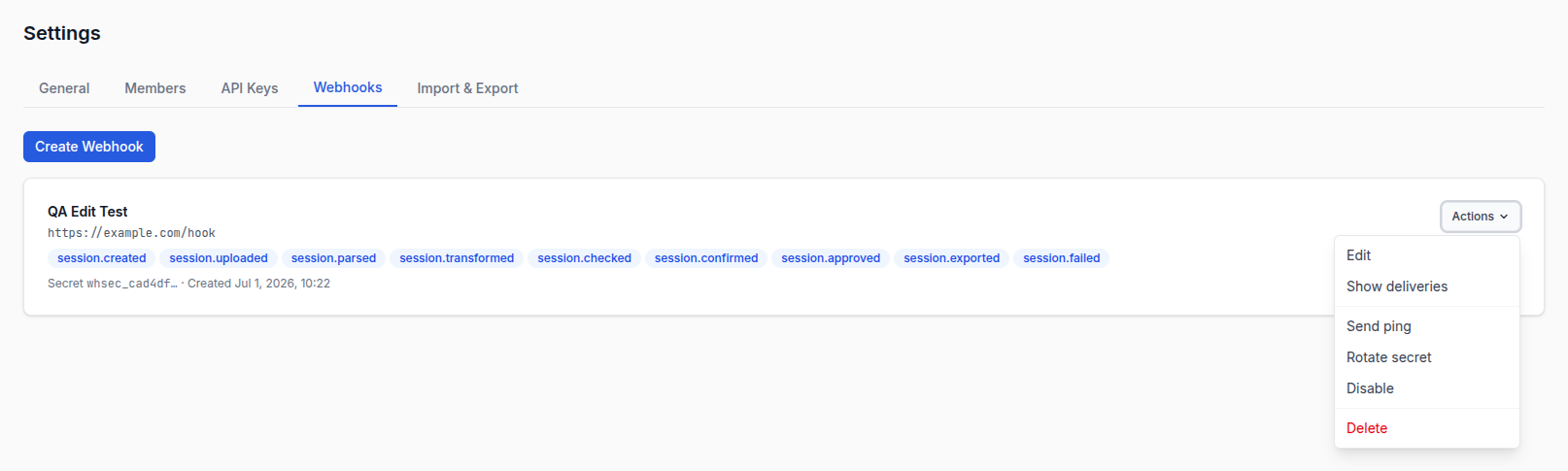
- Edit — change the endpoint's name, URL, subscribed events, or custom auth header. Opens a dialog pre-filled with the current values.
- Show deliveries / Hide deliveries — expands the delivery log table inline (see below).
- Send ping — fires a synthetic
webhook.pingenvelope at the endpoint. Use it after creating an endpoint to confirm the consumer is reachable and verifying signatures correctly. - Rotate secret — generates a new signing secret, encrypts and stores it, and shows the plaintext exactly once in the same reveal-once modal. The previous secret stops being accepted as soon as you confirm rotation — update your consumer in lockstep, or expect signature verification failures until you do.
- Disable / Enable — pause and resume deliveries. Pause does not delete the endpoint or its history; queued retries simply stop.
- Delete — removes the endpoint and its delivery history. Cannot be undone.
The delivery log
Choose Show deliveries to see the last 50 deliveries to the endpoint, newest first.
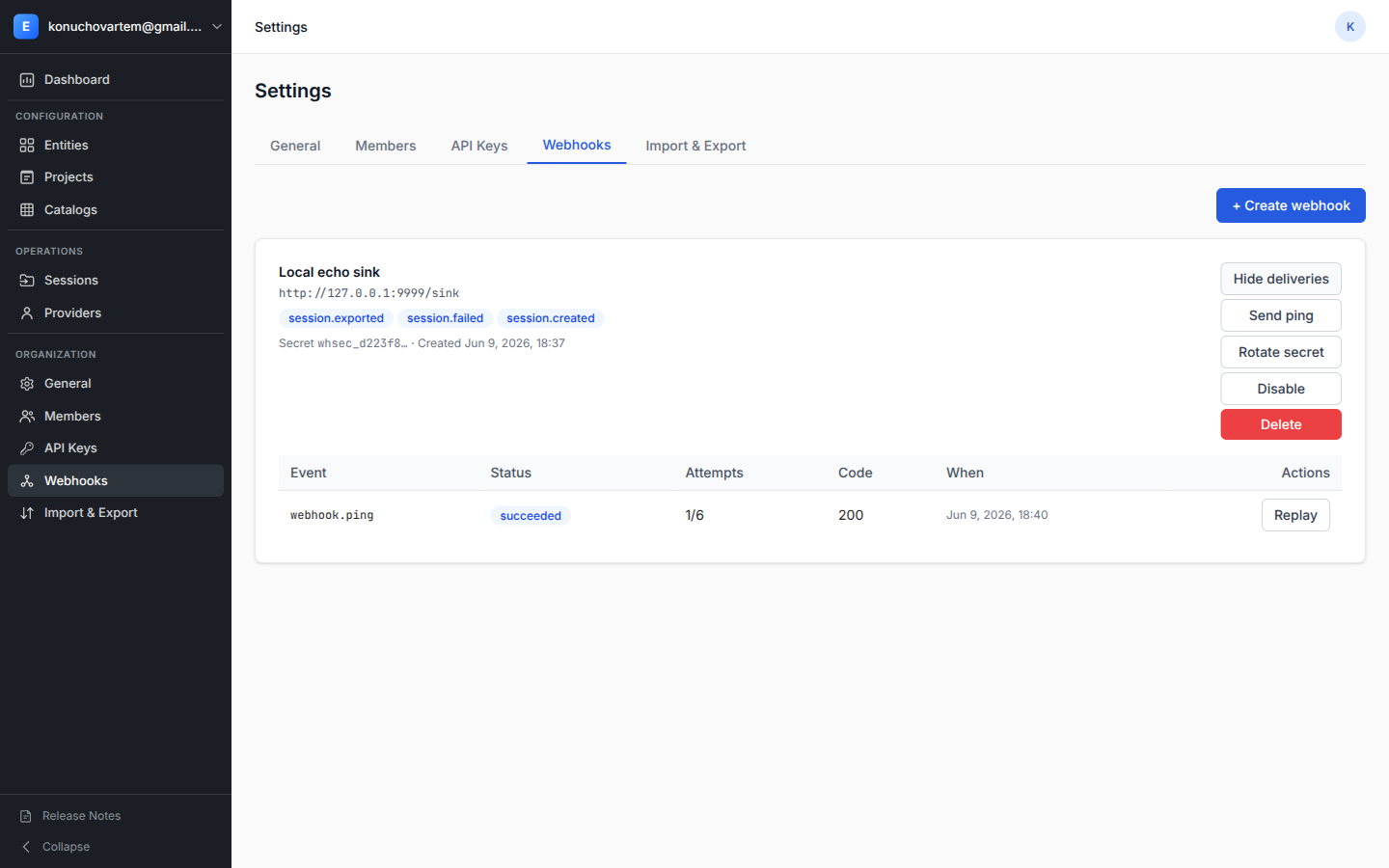
The columns:
- Event — the event type (e.g.
session.exported,webhook.ping). - Status —
pending,in_progress,succeeded, orfailed. - Attempts — current attempt over the maximum (default
6). - Code — the last HTTP status code returned by your endpoint.
- Result — what came back: for a succeeded outbound-binding delivery the record id created in the external system (e.g. the Salesforce record id), for a failed delivery the error excerpt (hover for the full text), for a pending retry the time of the next attempt.
- When — the time of the last attempt.
- Actions — a Replay button (see below).
Replay a delivery
Replay re-sends the same payload but mints a new webhook-id and
re-signs the body so signature verification still holds. Use it when a
consumer missed a delivery, or to re-drive something that ended up in
failed state after you fixed the receiver. The new delivery is linked
to the original — your downstream system can deduplicate by the original
event id if it cares about exactly-once semantics, or treat the replay
as a fresh event if not.
Failure handling
If your consumer returns anything outside the 2xx range, Expecto retries with exponential backoff (default base 30 s, capped at 1 h, 6 attempts total) and per-delivery jitter so retries from multiple endpoints do not synchronize.
When a delivery has exhausted all attempts it enters dead-letter and
the endpoint's consecutive failures counter increments. After 10
consecutive dead-lettered deliveries the endpoint is automatically
disabled — Expecto stamps disabled_reason = "consecutive_failures" and
stops dispatching new events to it.
To bring an auto-disabled endpoint back, fix the consumer and use Enable from the Actions menu. The counter resets and Expecto resumes dispatching events the moment new ones happen (queued events that already dead-lettered are not retried automatically; replay them by hand if you need them).
A single successful delivery is enough to reset the counter — so a flaky consumer that fixes itself within nine failures will not trip auto-disable.
Scoping an endpoint to a project
Endpoints with no project are org-level: they receive every matching session event in the organization, regardless of which project the session runs through. Endpoints attached to a project receive only events for sessions in that project. Use project scoping when different teams own different BI consumers, or when a contractor should not see other projects' sessions.
The project scope is set programmatically (via the API or MCP) — it is not exposed in the current UI dialog. The endpoint list filter respects your project access, so contractors only see endpoints scoped to projects they have access to.
Custom auth header
Some receivers sit behind a reverse proxy or API Gateway that requires
the caller (us) to authenticate — for example Authorization: Bearer
<token> against an OAuth2 Proxy, or X-API-Key: <key> against a
custom gateway. Use the Add a custom auth header checkbox in the
create dialog to set one. Enter the header name (e.g. Authorization)
and the value (Bearer eyJ…); the value is encrypted with the same
Fernet key as the signing secret and only ever decrypted just before
each outgoing request.
The header value is write-only — once you save the endpoint the UI shows only the header name, not the value. To rotate the value, edit the endpoint and enter a new one; to remove the header entirely, clear it on the endpoint via the API (the UI for clearing will land in a follow-up).
This complements — does not replace — HMAC signing. The signature authenticates the sender (Expecto). The custom header lets your infrastructure decide whether to accept the request at all.
Security & verification
Each request to your URL carries three headers:
webhook-id— UUID of this delivery. Stable across retries; changes on a replay.webhook-timestamp— Unix seconds when the request was signed.webhook-signature—v1,<base64-HMAC-SHA256>overwebhook-id.timestamp.body.
Verify by recomputing the HMAC with your endpoint's signing secret and
comparing in constant time. Reject any request older than 5 minutes
(webhook_signature_tolerance_seconds).
For sample verification code in Python and Node and a full description of the envelope, see the developer reference at For Developers → Webhooks.